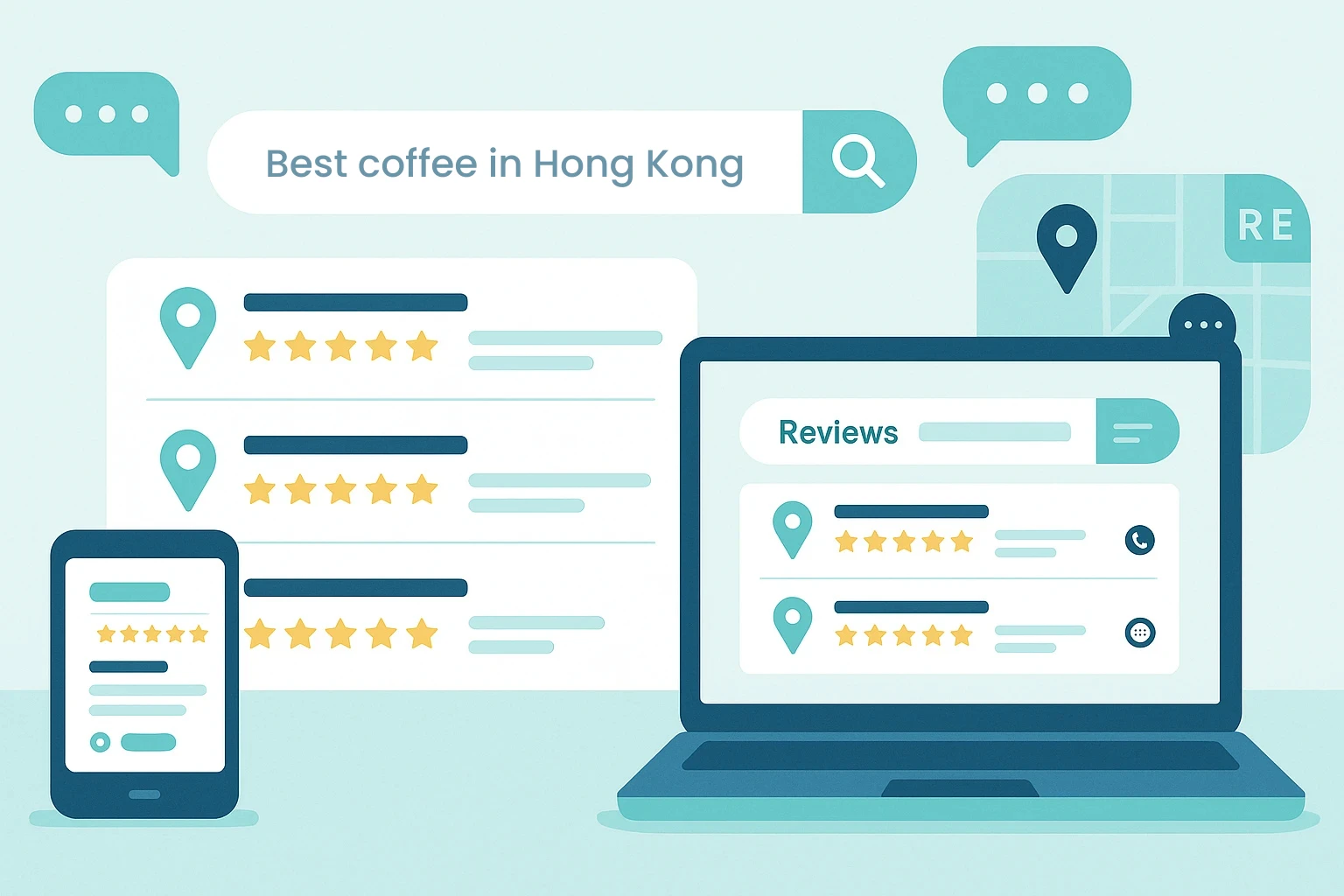
Find the best shops, restaurants, and local businesses by reading real Google reviews—without hopping across tabs. Type what you’re looking for, pick how many results you want, hit Search, and skim everything in one clean view.
Why ABD is different
- Reviews first: read what people say on Google directly in your results, no extra clicking around.
- All essentials in one place: address (with Google Maps link), website (when available), phone number, and Google rating for each listing.
- Fast + focused: built to help you decide quickly, not to drown you in ads or sponsored placements.
- No subscriptions, no accounts: just search and go.
It’s simple like ➊ ➋ ➌
➊ Type your keywords — e.g., best coffee near Picadilly Circus London, pizza in Milan, tailor in Hong Kong Central. ➋ Choose how many results you want to review. ➌ Hit “Search” and enjoy a tidy page with reviews, links, and contact details.
What you get for each listing
- 📝 Google review snippets to gauge quality at a glance
- 📍 Open in Google Maps for directions
- 🌐 Website link (if listed on Google)
- 📞 Phone number for quick calls
- ⭐ Google rating to compare options fast
When to use ABD
- You’re traveling and want a quick sense of the best nearby places.
- You’re exploring a new neighborhood and don’t want to sift through endless tabs.
- You’re short on time and need a shortlist you can trust.
Tips for great searches
- Be specific: add a neighborhood, cuisine, or “business name/type + town”.
- Try intent words like open now, takeaway, family friendly in your query.
- Start with 20 results (1 page), then adjust if you need more.
FAQ
Is ABD available for test? Yes—just follow the link search and read.
Where do reviews come from? From public Google reviews. Each listing includes a link back to Google so you can dive deeper.
Do I need an account? No accounts or subscriptions—just pay once and use it forever.
Does ABD replace Google Maps? No; it streamlines discovery by bringing the key info and review snippets into a single, fast page. When you’re ready, jump out to Maps or the business website.
Ready to find your next favorite place?

Advanced Business Directory
Find the best places faster — Google reviews at a glance.
Type your keywords, choose how many results you want, and read real Google reviews with Maps, website, and phone on a single page. Free to use—no account.
Powered by public Google reviews. We don’t alter ratings or content.
❓What to do after purchase (click to expand)
Add your key in index.php
$google_api_key = getenv('GOOGLE_MAPS_KEY');
if (!$google_api_key) {
  $google_api_key = 'Add_your_free_google_API_key_here';
}
Option A (quick): replace the placeholder:
$google_api_key = 'YOUR_GOOGLE_API_KEY';Option B (cleaner): leave code as-is and set an environment variable:
.htaccess (Apache)
SetEnv GOOGLE_MAPS_KEY YOUR_GOOGLE_API_KEY

Nginx
fastcgi_param GOOGLE_MAPS_KEY YOUR_GOOGLE_API_KEY;
Create a Google Places API key (quick steps)
- Open Google Cloud Console → create/select a project: https://console.cloud.google.com/
- Enable Places API (and Maps JS API if you embed a map).
- APIs & Services → Credentials → Create credentials → API key.
- Restrict the key:
- Browser calls: HTTP referrers → add your domain (e.g.
https://example.com/*). - Server calls: IP address restriction → add your server’s IP.
- API restrictions → allow only Places API (and Maps JS API if used).
- Browser calls: HTTP referrers → add your domain (e.g.
- Set up Billing for the project (required by Google for Places API).
- Copy the key and paste/set it as above. Reload and test a search.
Troubleshooting
- REQUEST_DENIED / not authorized: adjust key restrictions (referrer/IP + API).
- No reviews/empty: ensure Places API is enabled and your key is loaded.
- Over quota: check Quotas in Google Cloud and adjust.